Setting Up Your Device
A screen needs a player before it can be connected. There are two, and they behave the same once connected. Pick the one that fits your hardware:
| Use it for | Needs | |
|---|---|---|
| Web player | Smart TVs (Samsung, LG), or any device with a modern browser | Nothing to install. Open a web page. |
| Android player | Android TVs, TV sticks, tablets, signage boxes | An app to install. Stronger: silent updates, the panel can switch fully off on a schedule, and the device can be locked down. |
Whichever you choose, the device ends up showing a pairing code. Then continue with Connecting a Screen.
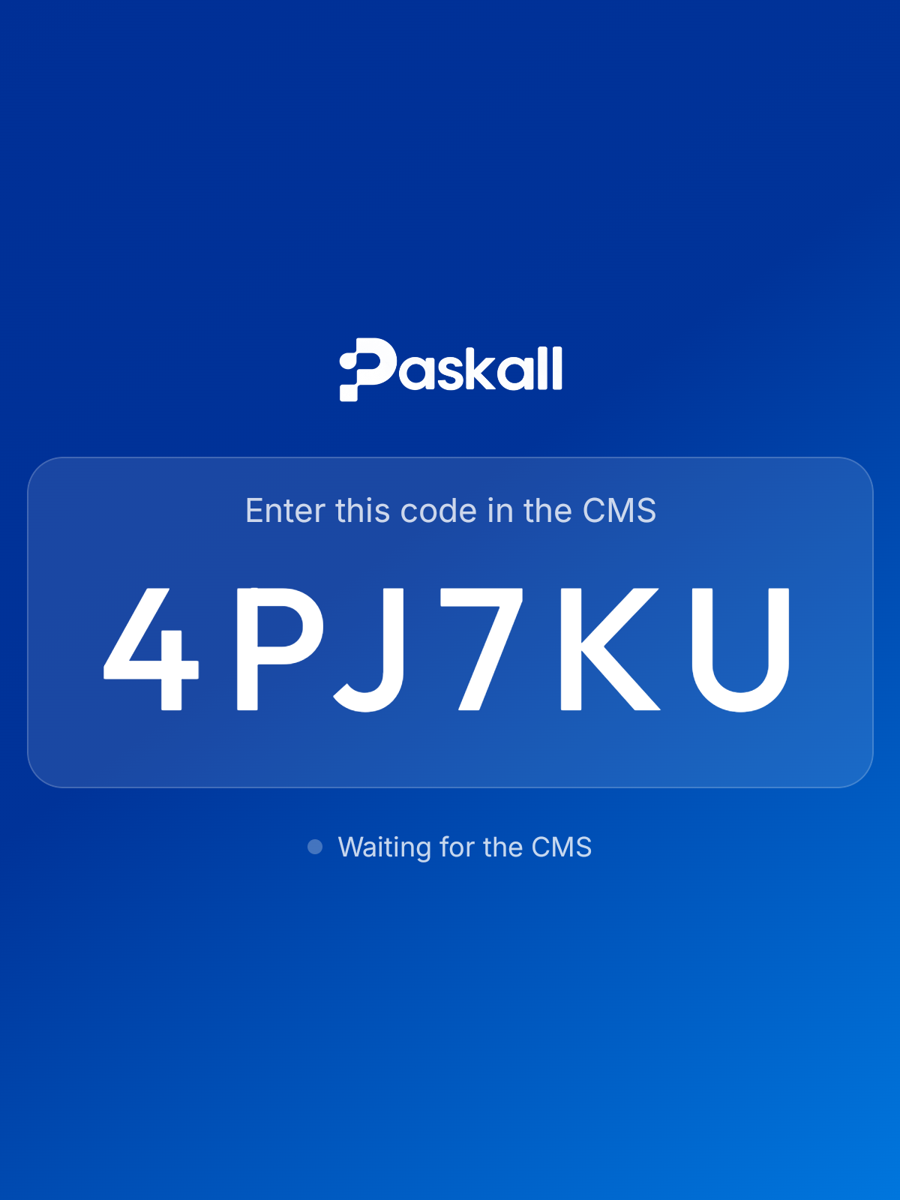
Option 1: Web player
-
On the TV or device, open the browser and go to:
https://web-player-production-cbfe.up.railway.app
-
A pairing code appears. Connect the screen from Paskall with that code. See Connecting a Screen.
- Press OK on the remote once. That hides the browser bar; the player stays full screen after that, including through its own updates.
- Make it stay there: set that address as the browser's home page, turn on the browser's kiosk or full-screen mode if it has one, and turn off the TV's own screensaver or eco sleep.
Sound
Browsers keep videos muted until someone presses a key. If a video should have sound, allow autoplay with sound in the TV browser's settings.
What the web player can't do
It can't install updates (it reloads itself instead), can't switch the panel off on a schedule (it shows black instead), and can't show websites that refuse to be embedded. For a screen that must be fully managed, use the Android player.
Option 2: Android player
About 10 minutes, once per screen.
Step 1: Allow the app to install
Google Play Protect blocks apps that don't come from the Play Store. Turn that off once on the device.
Skip this if
You are going straight to Device Owner setup (Step 4). That path installs over a cable and isn't blocked by Play Protect.
- Open the Google Play Store app on the device.
- Tap the profile icon, top right, then Play Protect.
- Tap the gear icon, top right.
- Turn off Scan apps with Play Protect.
Step 2: Install the app
Get the app from the Player Releases page. Open it on the device's own browser for Method B, or on your computer for Method A.
Method A: USB, from a computer
- On the device, go to Settings → About phone and tap Build number 7 times.
- Go to Settings → Developer options and turn on USB debugging.
- Connect the device to your computer with a USB cable and accept the "Allow USB debugging?" prompt on the device.
-
On your computer, download the current build and install it over the cable. The first line saves the file as
paskall-player.apkin the folder you run it from; the second sends that file to the device:curl -L -o paskall-player.apk https://signage-cms-production.up.railway.app/player/download adb install -r paskall-player.apkAlready downloaded it from the Player Releases page? Skip the first line and put your file's name in the second.
Method B: No cable
- On the device, open the Player Releases page in its browser and tap Download on the current version.
- Open the downloaded file from the notification shade or file manager.
- Allow "Install from unknown sources" when asked.
Open the app. It shows a pairing code. You can connect the screen now, or lock the device down first (below).
Step 3: Choose how locked down the screen should be
A plain install keeps the screen awake and hides the system bars, but the Home button still exits the app. Three levels, weakest first:
| Level | Setup | What it does |
|---|---|---|
| Screen pinning | None. Settings → Security → App pinning. | Stops accidental exits only. Anyone can unpin. |
| Launcher mode | Edit AndroidManifest.xml and rebuild. | The device boots straight into the player. Not for a personal device. |
| Device Owner | Step 4 below. | Recommended. Can't be exited. Needed for silent updates and for switching the display fully off on a schedule. |
Step 4: Device Owner mode (recommended)
Before you begin
The device must be factory reset, with no Google account signed in. Android won't grant Device Owner otherwise, and there is no way around it.
- Factory reset the device: Settings → System → Reset → Erase all data.
- During setup, skip the Google account step. Skip Wi-Fi too if offered, and add it afterwards from Settings.
- Turn on Developer options: Settings → About → tap Build number 7 times.
- Turn on USB debugging: Settings → Developer options → USB debugging.
-
On your computer, download the current build, install it over the cable, and make it Device Owner. The first line saves the file as
paskall-player.apkin the folder you run it from (skip it if you already have the file, and use its name instead):curl -L -o paskall-player.apk https://signage-cms-production.up.railway.app/player/download adb install -r paskall-player.apk adb shell dpm set-device-owner \ com.fortu.player/com.fortu.player.kiosk.DeviceAdminReceiverYou should see
Success: Device owner set to package com.fortu.player. If it says there are already accounts on the device, an account was added during setup. Factory reset and start again from step 2. -
Open the app. It locks itself to the foreground, disables the lock screen and keeps the screen on. Nothing else to configure.
- Connect the screen with the code it shows. See Connecting a Screen.
- Check it worked: long press the screen to open diagnostics and confirm it says
device owner (full kiosk). In Paskall, the screen's page shows Setup: Managed once it has checked in. If it says Basic, repeat step 5. - Reboot once. The device comes back to the Android home screen; open Paskall Player from there and confirm it resumes.
Note
Device Owner can't be removed with a command. To reuse the device for something else later, factory reset it.
Already running the app and want Device Owner without a cable or a reset? See Remote Device Owner Setup.