Connecting a Screen
Connecting a screen takes about a minute: the screen shows a code, you type that code into Paskall, and the screen starts playing. This page walks through it with pictures.
Before you start
Set up the device. The screen needs a player and must be showing a pairing code. That's covered on its own page: Setting Up Your Device, for smart TVs (web player) and Android devices (Android player).
Set up your account. Coming soon.
Pairing a screen
Step 1. Open Paskall and go to Screens in the left menu. Click Connect a screen.
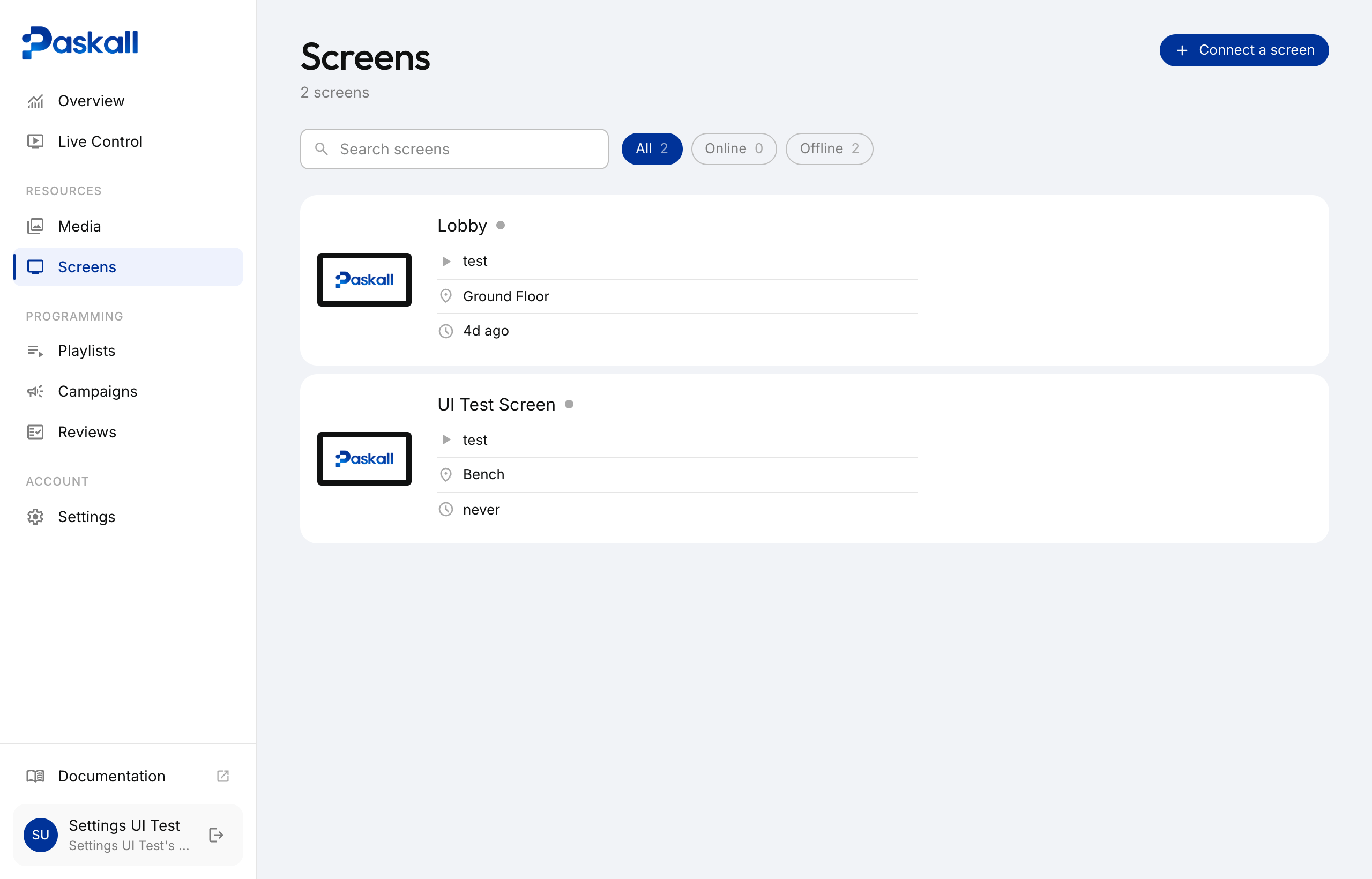
Step 2. A small window opens asking for the code.
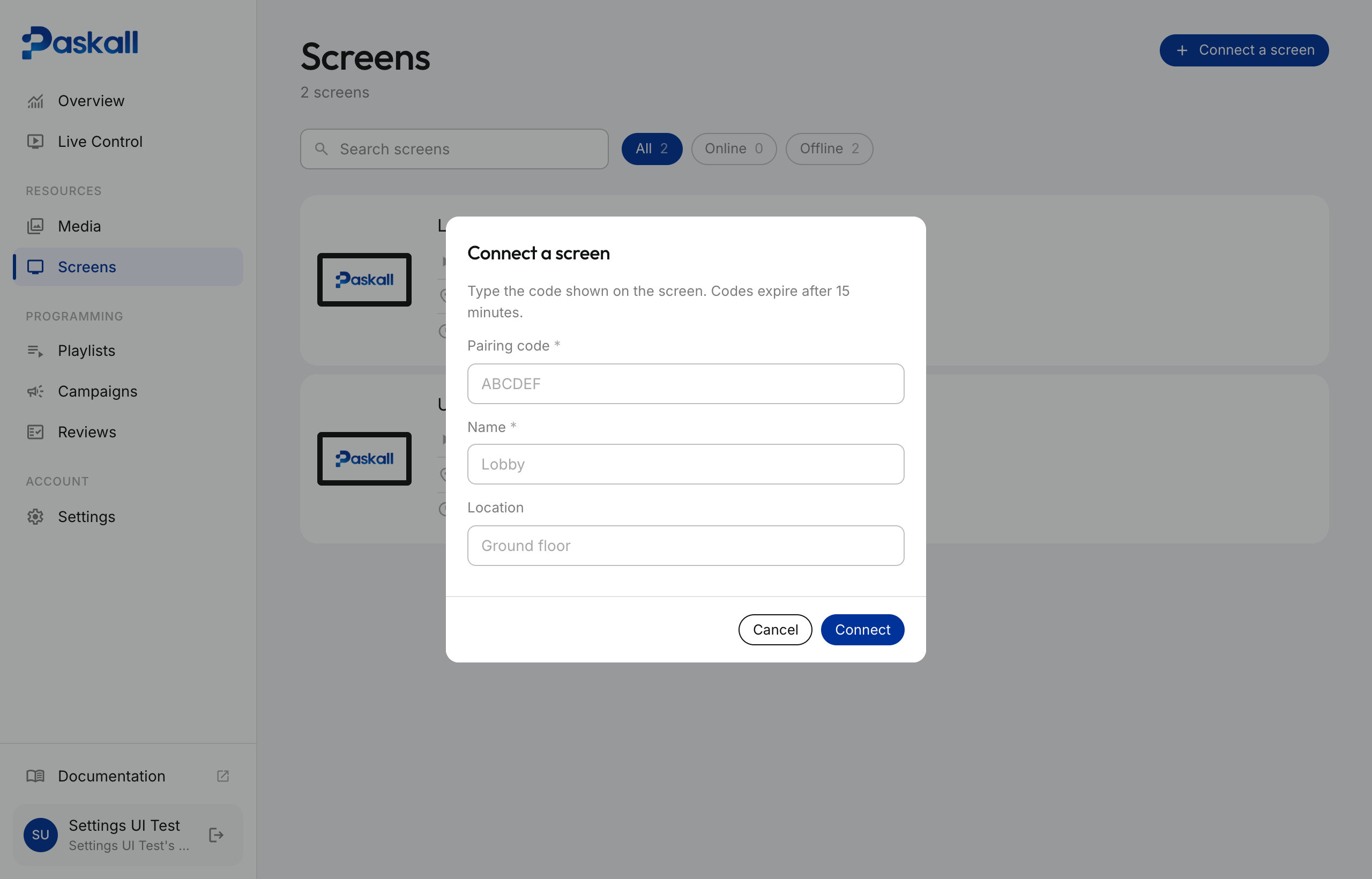
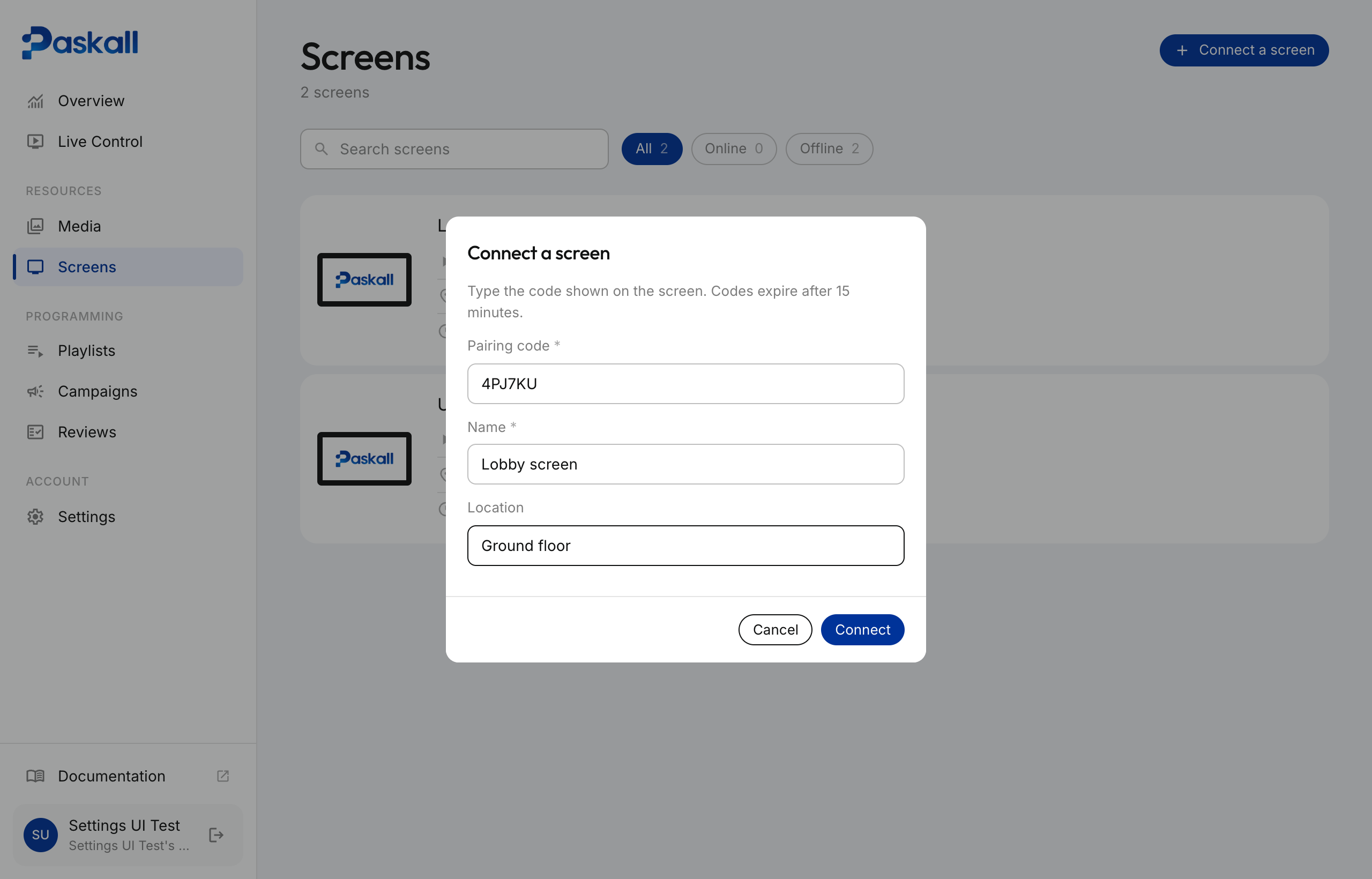
Step 3. Type the code exactly as the screen shows it. Give the screen a name you'll recognise later (for example "Lobby screen") and, if you like, where it is.
Tip
The code never contains the letters O, I or L, or the digits 0 and 1, so there is nothing to mix up. Codes stop working after 15 minutes; if yours has expired, the screen shows a new one by itself.
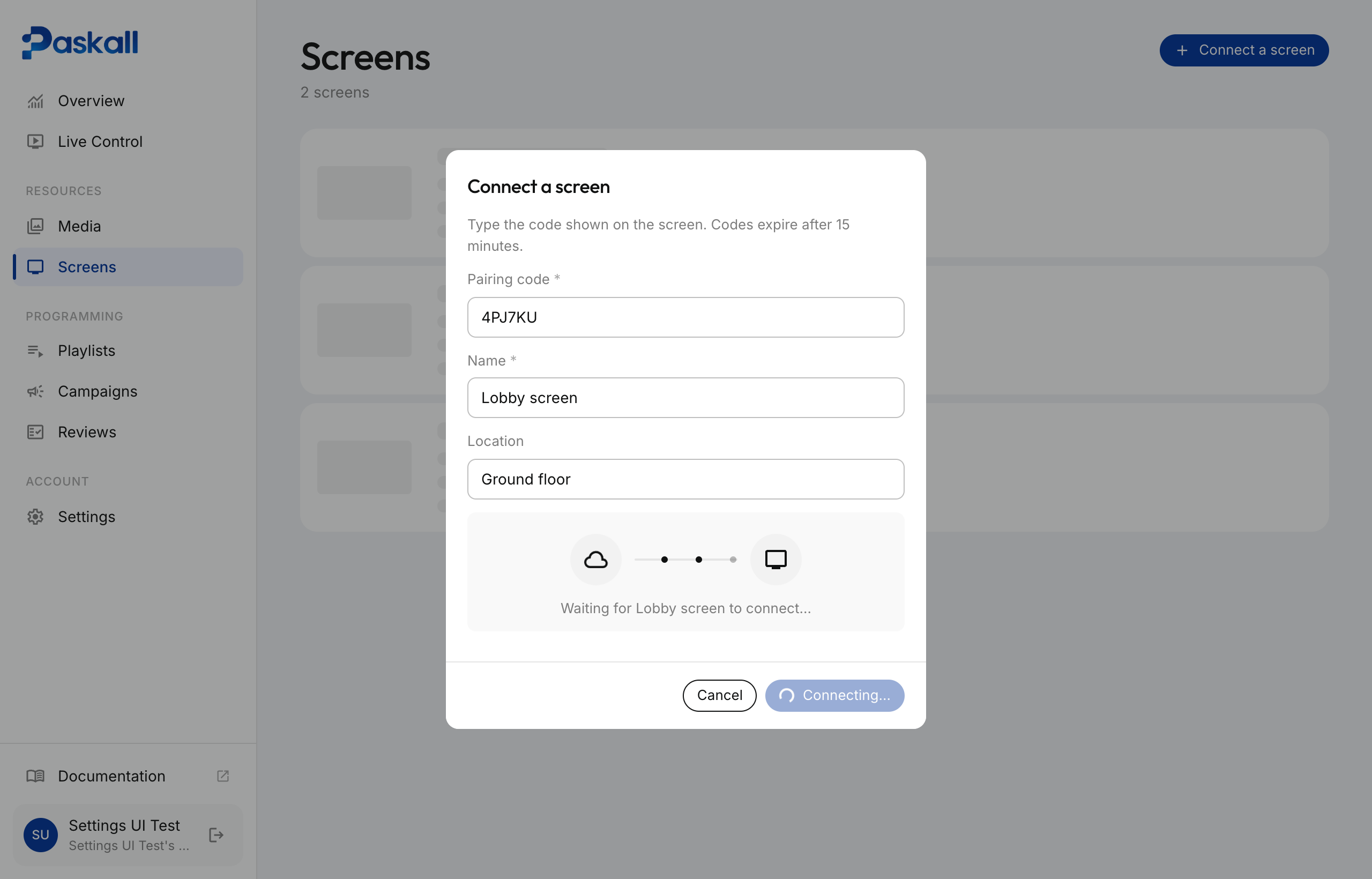
Step 4. Click Connect. Paskall waits for the screen to answer. This usually takes a few seconds.
Step 5. Once the screen has connected, Paskall asks how it is mounted. Pick the option where the top of the picture would be at the top of the panel, then click Done. You can change this later on the screen's page.
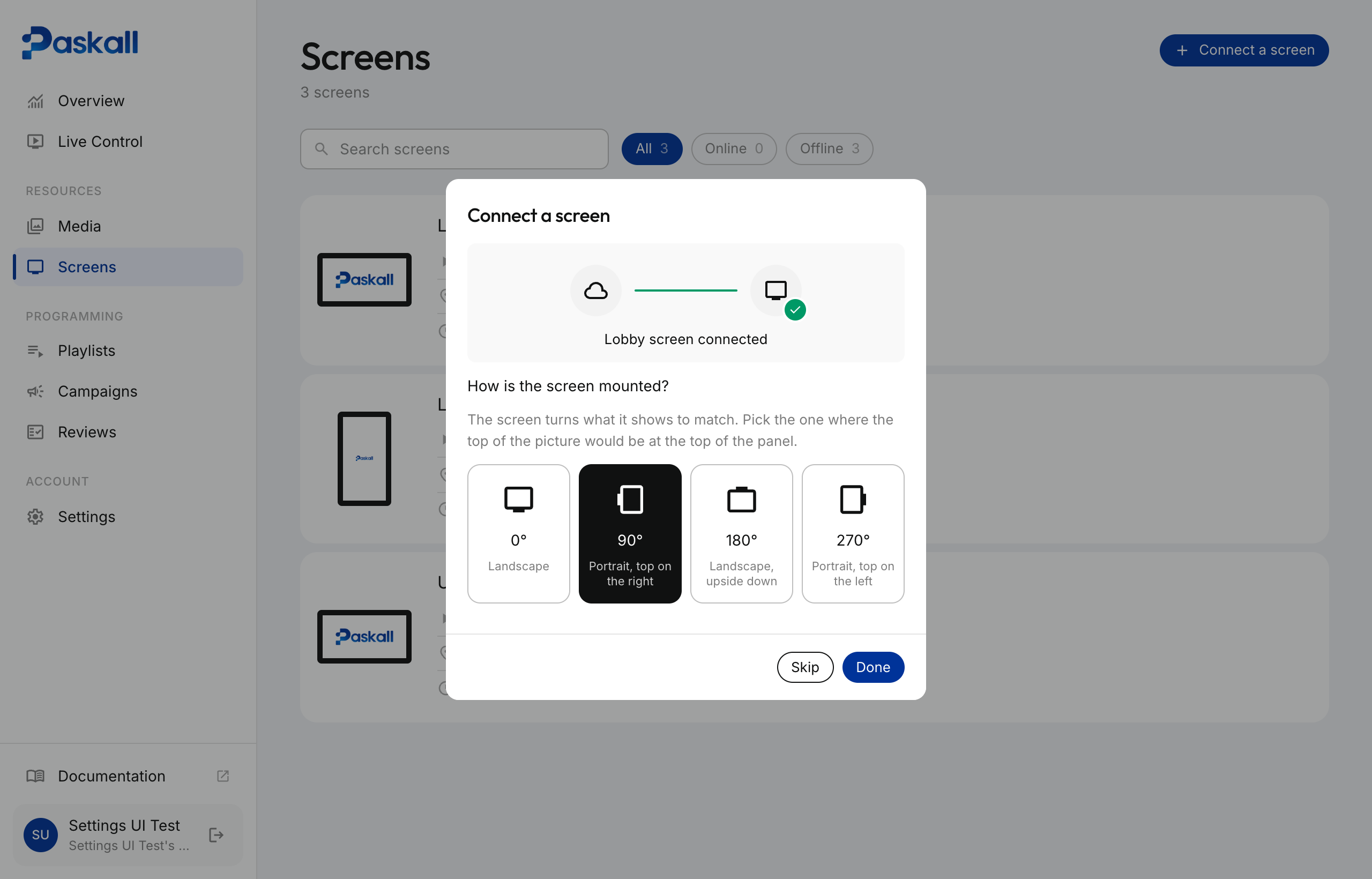
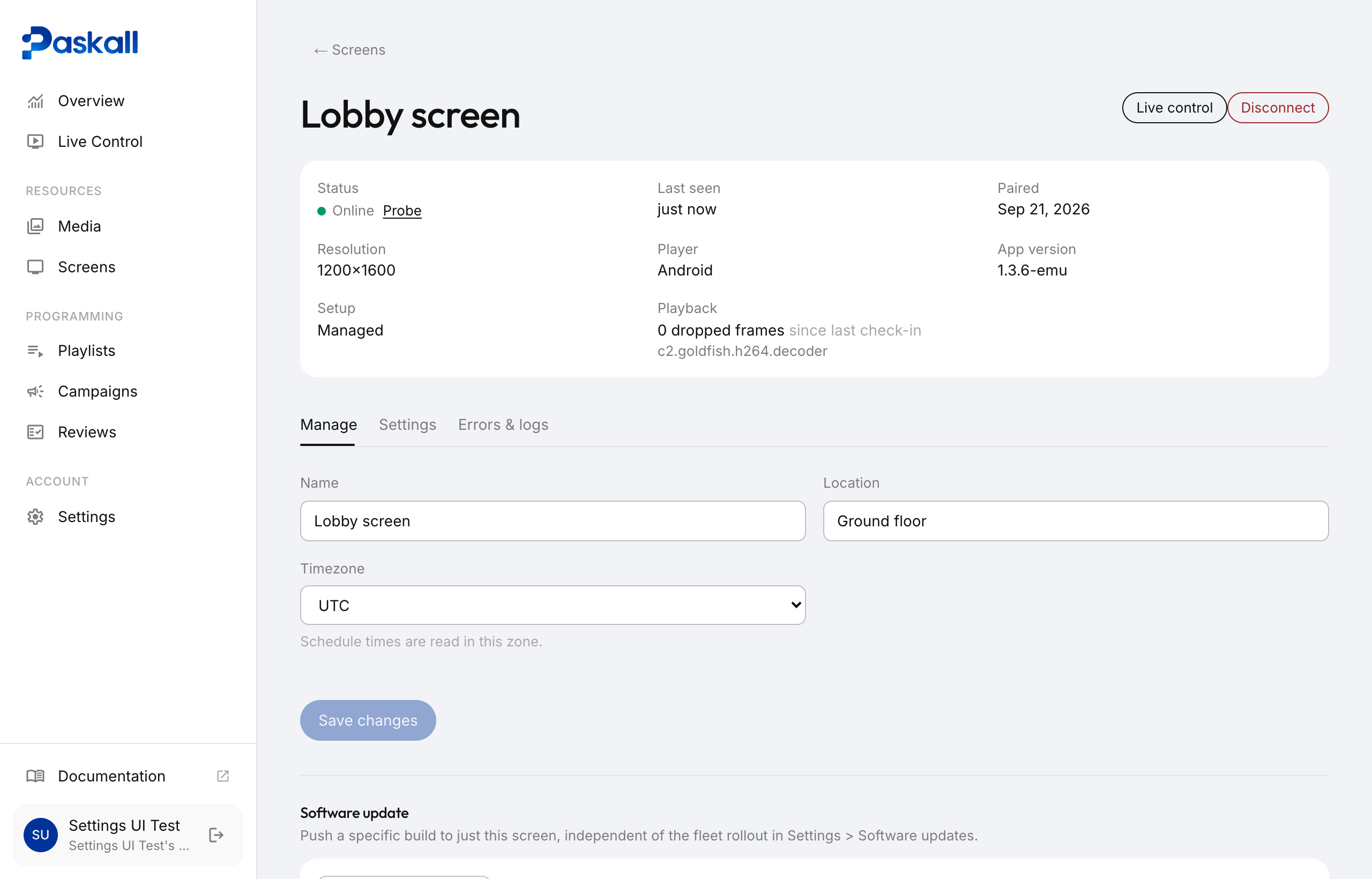
Step 6. You land on the screen's own page. The screen itself now shows a "waiting for content" card with its name.
That's it. To make it play something, put a playlist on it from Campaigns. The screen starts playing within a few seconds.
If a screen is removed from Paskall
It notices by itself and shows a new pairing code. Nothing needs doing on the hardware. Just connect it again with the new code.
Orientation
Orientation is chosen when the screen connects, and can be changed any time on the screen's page under Settings. It is the rotation in degrees, clockwise from the panel's own landscape:
| Option | Meaning |
|---|---|
| 0° | Landscape |
| 90° | Portrait, top of the picture on the right |
| 180° | Landscape, upside down |
| 270° | Portrait, top of the picture on the left |
The two portrait options matter: a tall screen stood on the other side needs the other one, or everything shows upside down. A change takes effect within a few seconds. No reinstall is needed.
Screen status
Paskall shows whether a screen is reachable from how long ago it last checked in.
| Status | Last checked in |
|---|---|
| Online | Under 2 minutes ago |
| Slow to respond | 2 to 15 minutes ago |
| Offline | Over 15 minutes ago, or never |
To check right now, open the screen's page and click Probe next to its status. It asks the screen to check in immediately and waits up to 40 seconds.
Troubleshooting
The screen is black, with no code and no content. This is almost always power or hardware, not pairing. A screen that has been removed or disconnected always shows a code. Check the power connection first.
The code doesn't work. Long press anywhere on the screen to open its diagnostics view. Compare the server address shown there with the Paskall you are using. If they don't match, the screen was set up for a different server.
How do I see what a screen is doing? Long press anywhere on the screen. The diagnostics view shows its name, the server it talks to, the content version, cached data, and the most recent error if there is one.